How to Join
Beta Testing
A step-by-step guide to accessing Radar as a tester via Google Play — and what to do if something doesn't go to plan.
Confirm the right Google account is active on your device
Open the Play Store app on your Android device. Tap your profile picture in the top-right corner and check which account is shown. It must be the same email address that was added to the testing programme — not just any account on the phone.
If the wrong account is shown, tap it and switch to the correct one before continuing.
Install from the testing link
On your Android device, open the testing link below. This takes you to Radar on the Google Play Store, where you can install it as a tester.
Testing link play.google.com/apps/testing/uk.co.daltechnology.radar
Open Radar on the Play Store
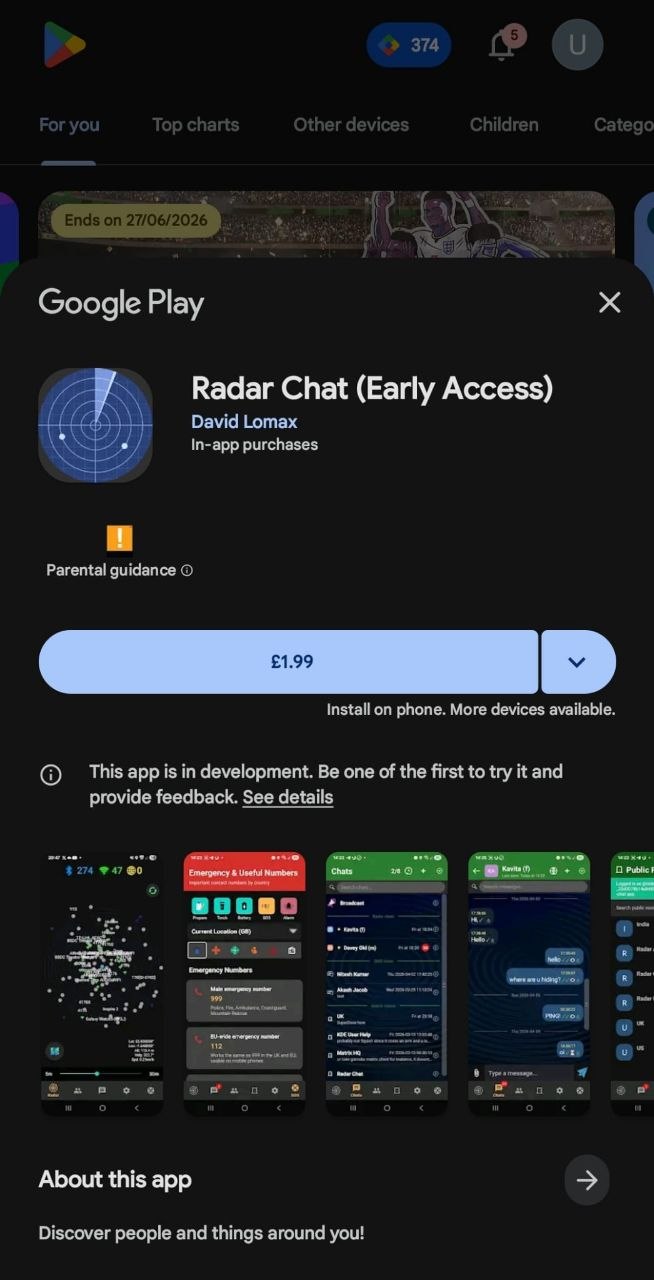
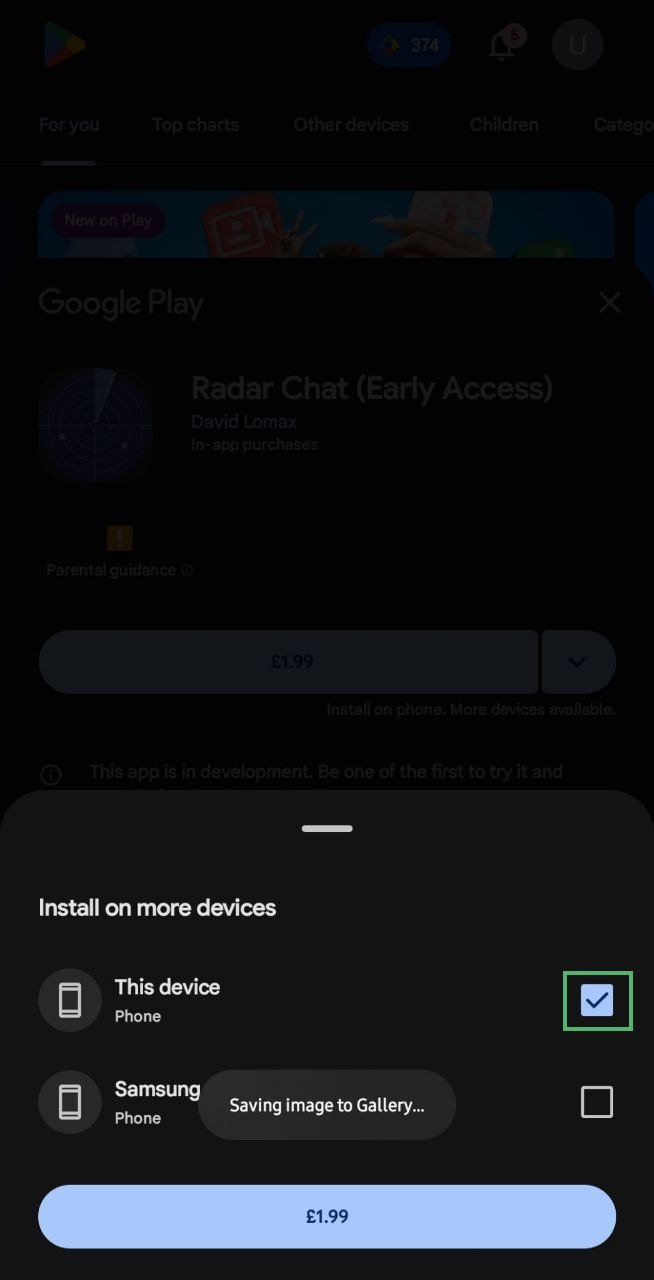
Radar chat is in the app store. It may show an associated price, like £1.99. Don't worry about this — you're not going to be charged. This is misleading on the part of Google.
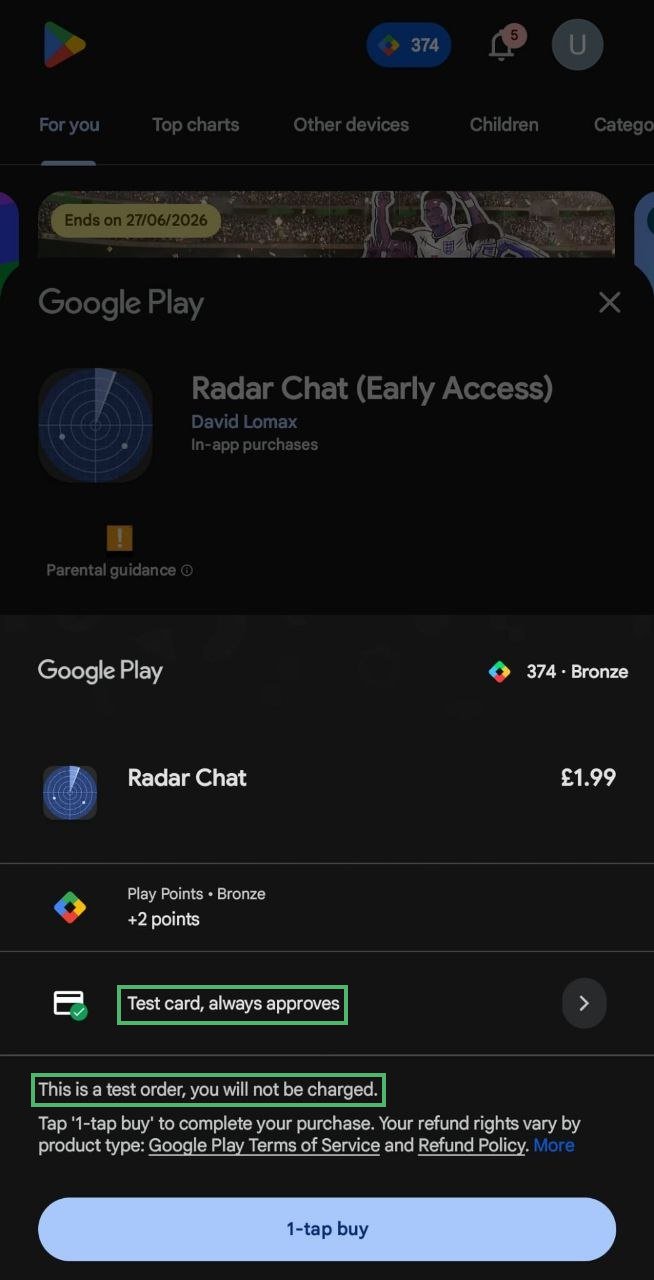
Choose the "Test card, always approves" payment method
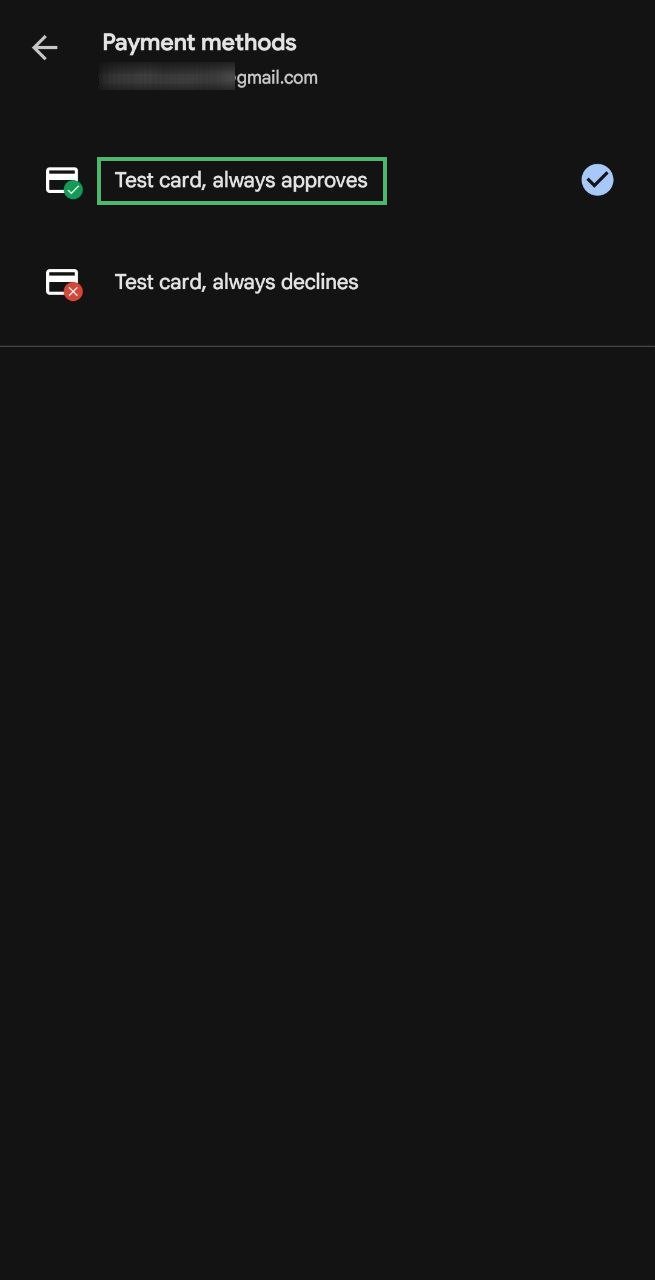
When prompted for a payment method, ensure you use "Test card, always approves". This simulates a successful payment via a credit card, but doesn't really charge your account.
Do not pick "Test card, always declines"
Don't select "Test card, always declines", because this simulates a failed payment and the install won't complete.
Choose a device to install on
If prompted for a device to install on, choose at least "this device". You can install on your other devices, including tablets, too.
Open Radar and complete the setup
After installing, open the Radar app and work through the tutorial and the permissions cards. Granting the permissions lets Radar work fully on your device.
What if Play Store is asking me to pay?
This almost always happens because the Play Store has cached the paid listing before tester status was confirmed, or because the opt-in and store links were used in the wrong order. Work through the fixes below in sequence until the price disappears.
- Confirm you opted in first. Visit the opt-in link and check whether it says "You are a tester" or still shows a "Become a tester" button. If you have not yet opted in, complete Step 2 above before trying anything else. Opt-in page play.google.com/apps/testing/uk.co.daltechnology.radar
-
Clear the Play Store cache.
This is the fastest fix and resolves the issue for most people.
- Settings → Apps → See all apps → Google Play Store
- Tap Storage & cache
- Tap Clear cache (not "Clear storage" — that logs you out)
- Re-open the Play Store and search for Radar
-
Also clear the Google Play Services cache.
If clearing the Play Store cache alone didn't work, repeat the same process for Play Services:
- Settings → Apps → See all apps → Google Play Services
- Tap Storage & cache → Clear cache
- Then clear the Play Store cache again (Fix 2 above)
- Re-open the Play Store
-
Force stop the Play Store, then clear cache.
- Settings → Apps → Google Play Store → Force Stop
- Then tap Storage & cache → Clear cache
- Re-open the Play Store
-
Sign out and back in to your Google account.
Use this if the steps above have not helped.
- Play Store → tap your profile icon → Manage accounts on this device
- Remove the Google account
- Settings → Accounts → Add account → Google
- Sign back in with the whitelisted email address
- Re-open the Play Store — tester status should now be reflected
- Wait up to 24 hours. Google Play licensing propagation can sometimes take time, even after all the above steps. If your opt-in was confirmed but the price still shows, leave it overnight and try again. In most cases it resolves on its own.
What if the testing page says it's unavailable?
- You're signed in with the wrong account. The testing programme is locked to specific email addresses. If the opt-in page is completely unavailable (rather than showing a price), it usually means the Google account currently active in your browser or Play Store is not on the tester whitelist. Switch to the correct account and try the link again.
- Contact us to check your email is listed. If you are confident you are using the correct account and the page is still unavailable, your email address may not have been added yet. Get in touch and we will verify.
Feedback during testing is very welcome — please report any bugs or unexpected behaviour directly to us so we can improve the app before the full release.
→ View release notes · → Basic vs Premium features